
If you’ve ever tried to match a color from a website, logo, or image, you probably noticed how tricky it can get. A shade that looks simple at first turns out to have a very specific identity behind it. People usually come across this when working on designs, websites, or even simple edits. Sometimes it starts while using tools like bmi calculator, where UI colors catch your eye and you want to reuse them somewhere else.
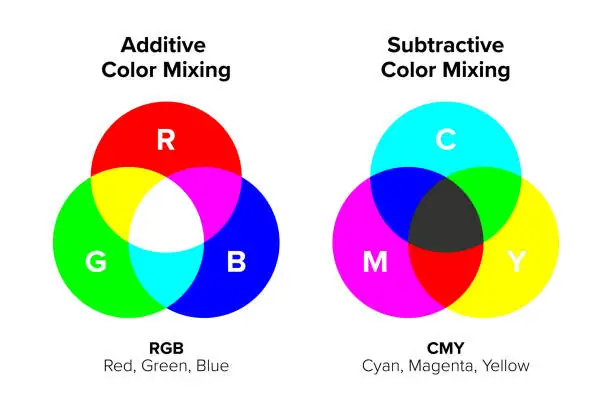
Colors online are not just visual. They are stored as values numbers and codes that define exactly how that color appears on screen.
How to Check Color Code?
When people ask How to Check Color Code, they usually mean finding the exact value of a color from a screen, image, or design. That value might be a hex color code, an RGB color code, or even something used in CSS color codes.
There isn’t just one way to do it. Some methods are quick, like using a browser extension. Others involve design tools or manual inspection. It depends on where the color is coming from and what you want to do with it afterward. At its core, checking a color code means identifying the digital color values behind what you see.
Understanding what a color code actually is
Before getting into tools, it helps to understand what these codes represent. A color on screen is made using combinations of red, green, and blue. That’s where RGB color code comes from.
A hex color code is just another way of writing the same thing, usually starting with a “#” followed by six characters. For example, pure red is written as #FF0000.
HTML color codes and CSS color codes use these values to display colors consistently across web pages. Without them, colors would vary wildly between devices.
Checking color codes from websites
One of the most common situations is finding a color from a website. Maybe you like a button color or a background shade. Browsers already have built-in tools for this. Right-click on any page, inspect the element, and you’ll see the color values in the styles section.
People sometimes pair this with tools like percentage calculator when adjusting brightness or opacity values. It’s not required, but it helps when fine-tuning colors. A web color picker can make this even easier by letting you hover over elements and instantly grab the hex color code.
Checking color code from images or screenshots
This is where things get a bit more interesting. Images don’t expose their colors directly, so you need a color picker tool or color identification tool. Most image editors have this built in. You open the image, select the color picker, and click anywhere on the picture. The tool will show the exact RGB color code and hex value. This method answers the common question: how to check color code from image or screenshot. It’s actually one of the easiest once you know where to look.

Using online color picker tools
There are many free tools online that act as a color code checker. You upload an image or simply paste it, and the tool lets you pick any color.
| Tool Type | What it Does |
|---|---|
| Web color picker | Picks colors directly from browser |
| Image picker | Extracts colors from uploaded images |
| Screen picker | Detects colors anywhere on your screen |
These tools are often the best tools to find hex and RGB color codes online because they don’t require installation. They also help when working with digital color codes across different platforms.
Checking color code in design software
Professional tools like Photoshop or Illustrator are commonly used for this. In Photoshop, for example, you use the eyedropper tool. Click on any area, and it shows the color values instantly. This is often described as a step by step guide to check color code in Photoshop, though the process itself is pretty straightforward.
At some point, you might also be working across time zones and coordinating projects, which is where tools like timezone converter come in handy. Not directly related to colors, but part of the same workflow for many designers.
Mobile apps for checking color codes
Phones can do this too. There are apps that let you take a photo and tap on any area to find its color code. This is useful when you want to match real-world colors, like paint or fabric, with digital versions.
The process is similar to desktop tools, just adapted for touch screens. It also answers how to use color picker tool in browser or apps in a more practical way.
Different types of color codes explained
There are a few main formats you’ll come across.
| Color Format | Example | Usage |
|---|---|---|
| Hex | #FFFFFF | Web design |
| RGB | rgb(255,255,255) | Screens and displays |
| HSL | hsl(0, 0%, 100%) | CSS styling |
| CMYK | (0,0,0,0) | Printing |
Knowing these formats helps when working with HTML color codes and CSS color codes. Each format represents the same color in a slightly different way.
Why designers rely on color code checkers
Consistency matters. If a brand uses a specific shade of blue, even a slight variation can make things look off. A color code checker ensures that the exact same color is used everywhere website, app, logo, or social media graphics. This becomes even more important when working with multiple people or teams.
Adjusting and converting color values
Sometimes you don’t just check a color you adjust it. You might make it lighter, darker, or more transparent. Tools can convert between hex color code and RGB color code easily. Some even show color values in real time as you tweak sliders.
For tasks like this, people often combine different utilities, including something like an age calculator mindset breaking things down step by step and adjusting inputs to see changes.
Matching colors across devices
Colors don’t always look the same on every screen. Brightness, display type, and calibration all affect how a color appears. That’s why relying on digital color codes is important. Even if the appearance changes slightly, the underlying value stays consistent. This helps maintain uniformity across different devices.
Common mistakes when checking color codes
One mistake is picking the wrong pixel. If you zoom out too much, you might select a blended color instead of the exact one. Another issue is compression. Images sometimes lose color accuracy when saved or uploaded. Using a reliable color identification tool reduces these errors.
Using color codes in web development
Developers use CSS color codes to style websites. These codes define backgrounds, text colors, borders, and more.
A simple example:
color: #000000;
background-color: rgb(255,255,255);
These values come directly from color pickers or design files. Sometimes developers also rely on tools like an energy converter mindset switching between formats and adjusting values depending on the context.
Choosing the right tool for the job
Not every situation needs advanced software.
| Scenario | Best Tool |
|---|---|
| Website color | Browser inspector |
| Image color | Online image picker |
| Design work | Photoshop or Illustrator |
| Real-world color | Mobile app |
Picking the right tool saves time and avoids confusion.
How beginners usually learn this
Most people don’t start by memorizing color formats. They learn by doing clicking around, trying tools, and slowly understanding what the numbers mean. At first, hex color code might look confusing. After a while, you start recognizing patterns. It becomes less about memorizing and more about familiarity.
Why color codes matter more than they seem
Colors affect how people feel about a design. A slight change can make something look modern or outdated. That’s why checking and using the correct color values matters, even if it feels like a small detail. It’s one of those things that quietly shapes the overall experience.
Final thoughts
Learning How to Check Color Code isn’t complicated, but it does take a bit of practice. Once you get used to using a color picker tool or color code checker, it becomes second nature. You start noticing colors differently. Not just as shades, but as values you can capture, reuse, and adjust. And after a while, it stops feeling technical. It just becomes part of how you work with anything visual.